Merch mockups from one artwork: tote, mug and tee
Put one design on a tote, a mug and a tee with a multi-image edit model: artwork and blank product as references, then check the print, the wrap and the scale.
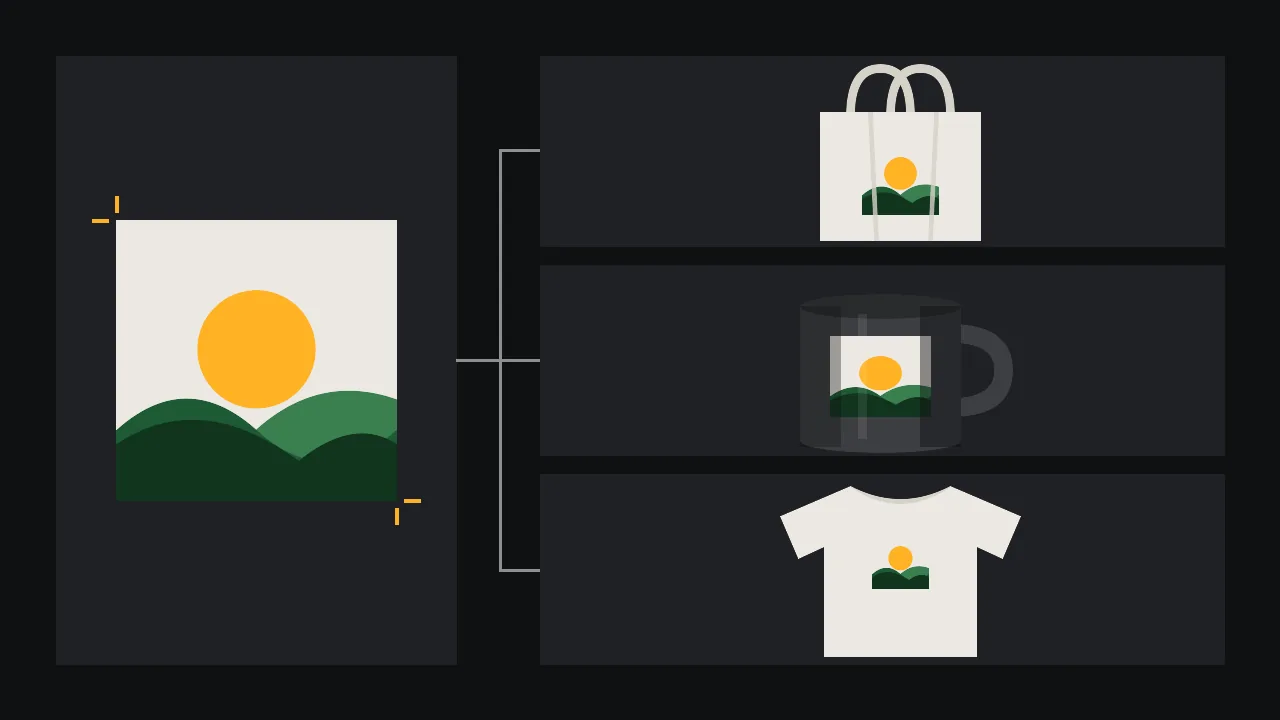
You have one finished artwork and three blanks you might sell it on: a canvas tote, a ceramic mug and a plain tee. Before anything is printed you want to see the design on all three, for a shop page, a pitch to a café, or simply to decide which product is worth a sample. A mockup template in a layout program does this with a smart layer, but you need a template per product and per angle. A multi-image edit model does it from two pictures: the artwork and a photo of the blank. Our brand identity board used one such edit for a quick paper-bag preview; this post is the full test bench for three products, and the list of things it gets wrong.
Pick a model that takes more than one image
An ordinary edit model changes one picture. For a mockup you need two inputs that play different roles, so look on /models for edit models whose image field accepts several files. Four that do, with what their own pages say:
- [GPT Image 2 Edit](/models/openai/gpt-image-2/edit) edits from plain instructions with one or more reference images, and has a low, medium and high quality setting, so you can try a layout cheaply first.
- [Nano Banana Pro Edit](/models/google/nano-banana-pro/edit) takes a long list of input images and has a resolution setting, useful for the one finalist you will crop tight.
- [Kling Image O3 Edit](/models/kwaivgi/kling-image-o3/edit) lets you name each input in the prompt by its order, as <<<image_1>>>, <<<image_2>>> and so on, and can return several variants in one run.
- [Flux 3 Image Edit](/models/black-forest-labs/flux-3/image-edit) combines several inputs referred to as image 1, image 2, and follows the shape of the first image unless you set a ratio.
That last detail matters for all of them: the order of the uploads is part of the prompt. Decide once that image 1 is the product photo and image 2 is the artwork, and keep that order for every product, or your notes stop meaning anything.
Prepare the two references properly
The artwork goes in flat and clean: a front view on a plain background, no shadow, no paper texture, no mockup already around it. If it has a transparent background, place it on a flat colour first, because some models read transparency as black or white. If the art carries lettering you care about, keep it large; small type is the first thing to drift.
The product photo should be a real blank, lit the way you want the final shot: the tote hanging or flat, the mug at a three-quarter angle with the handle visible, the tee on a hanger or laid flat with the collar straight. Even light, no strong reflections on the mug, and nothing printed on the blank yet. A good blank photo does more for the result than any prompt word.
One prompt pattern, three products
Keep the prompt short and literal. Say which image is which, where the print goes, how big it is, and what must not change.
Image 1 is a photo of a plain natural canvas tote bag. Image 2 is a flat artwork. Print the artwork from image 2 on the front of the tote in image 1, centred, about two thirds of the bag's width, as a screen print that follows the folds and texture of the canvas. Keep the artwork's colours, shapes and proportions exactly. Do not change the bag, the handles, the light or the background. No added text.For the mug, ask for the art to wrap around the curved side, centred between the handle and the far edge, with the outer part of the design turning away as the surface curves. For the tee, give the placement in garment terms: centred on the chest, top of the print about a hand's width below the collar. Generate two or three takes of each and keep the best; with Kling Image O3 Edit you can ask for the variants in one go.
Check the print before you check the photo
A mockup can look great and still lie about the design. Put the result next to the original artwork at the same size and go through it in this order:
- Is it still your artwork? Count the elements, compare the colours, look at the edges. Models tidy, simplify and sometimes add a shape that was never there. If the sun has gained rays or the hills have changed shape, reject the take.
- Does it bend correctly? On the mug the print should shrink and compress toward both sides of the cylinder, and its top and bottom edges should curve the same way as the rim. A print that sits flat on a round mug is the clearest sign of a fake.
- Does it sit in the cloth? On the tote and the tee, folds should run through the print, with the shading of the fabric on top of the ink. Ink that floats above the creases looks like a sticker.
- Is the scale believable? Measure the real print area of each blank and compare. A design that fills a tee from shoulder to hem would not fit a standard print area, and a mug print that reaches the handle is usually impossible.
- Is the lettering intact? Zoom to full size. Any word in the art must read exactly as in the original, letter for letter.
What to fix by hand
Some faults are faster to fix in an editor than to re-roll. When the photo is good but the print has drifted, keep the generated image as a lighting and fold guide and paste your real artwork over it: warp it to the surface with your editor's warp or displacement tool, set the layer to multiply on light fabric, and paint back the creases. For small local problems, a masked edit on that one area with Ideogram V4.5 Edit, as in our jar label concept, is cheaper than a whole new take. Fix the colour last, against the original art file, never by eye against the screen of the mockup.
If the artwork itself is a repeat, like the one built in the seamless pattern for wrapping paper and fabric, expect the pattern scale to wander between products; fix the repeat size first, then generate. And if the mug and the tote are part of a wider brand, the palette and mark should come from a board like the stationery set from one brand concept, not be reinvented per product.
What a mockup is, and what it is not
A generated mockup is a picture of how the product could look. It is not a print proof: it does not know your printer's print area, the ink limits, how a colour shifts on dark cotton or how a ceramic glaze changes the art. Use it to choose a product, to plan the placement and to show the idea. Before you sell anything, order one physical sample, photograph it, and replace the generated image with the real one wherever a buyer would rely on it. Start your own in the studio.
Questions
Can an AI model put my design on a product photo?
Yes. A multi-image edit model takes the product photo and your artwork as two references and places the art on the product. Check every take against the original, because the model can redraw parts of the design.
Why does my design look flat on the mug?
Ask for the print to wrap around the curved side and turn away toward the edges, and use a three-quarter photo of the mug. If it still looks flat, warp your real artwork over the generated photo by hand.
Can I use a generated mockup instead of a product photo in my shop?
Use it to plan and to show the idea. Where a buyer relies on the picture to know what arrives, use a photo of a real printed sample.