A jar label concept with AI: from die-line sketch to print-ready file
Design a label for an invented honey jar: draw the die-line first, plan the hierarchy, generate label art, then set the type, legal text and barcode by hand.
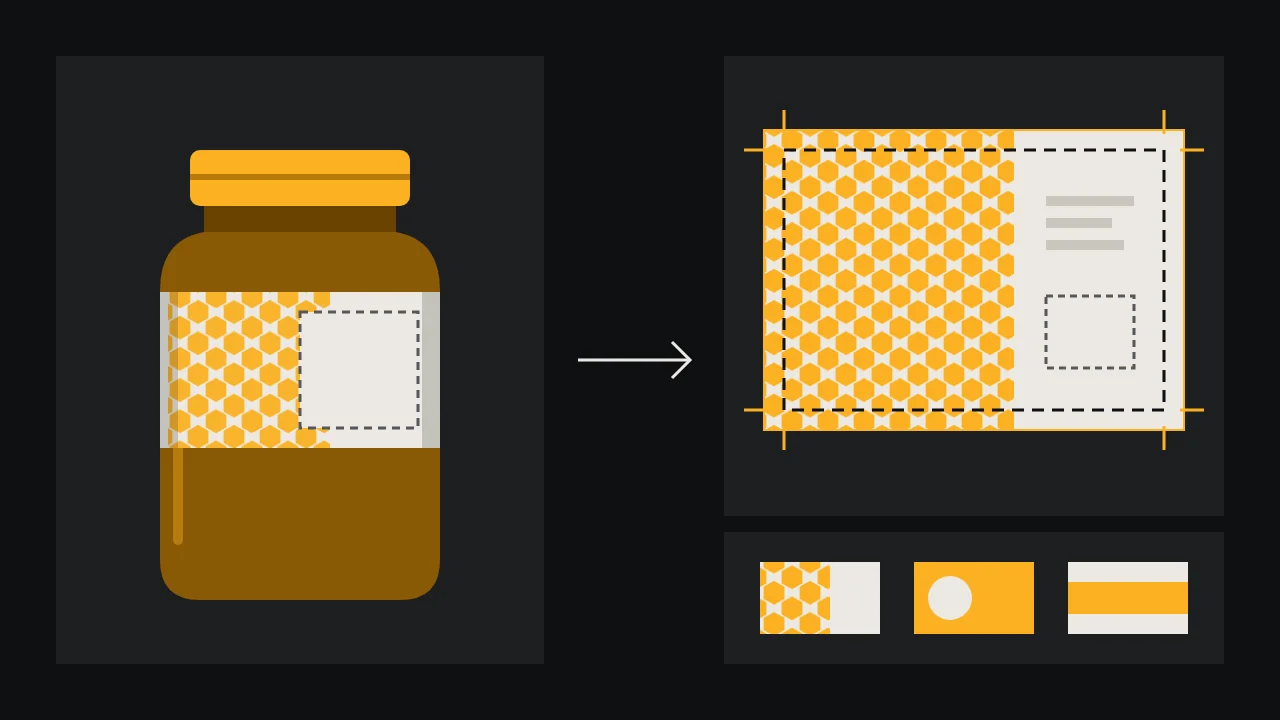
Here is the brief we will follow from start to finish: a small producer called Hollow Oak sells heather honey in a short, round glass jar, a few hundred jars a season. They want a label that looks hand-made but reads clearly on a crowded market table. Nothing about this jar exists yet, which makes it a good exercise. An image model can fill a wall with label ideas in an hour. It cannot measure the jar, write the ingredients or make a barcode that scans, and the order in which you do those things decides whether the concept ever reaches a printer.
Start with the jar, not the prompt
Before any generation, draw the die-line: the outline the label is cut to and the shape it takes on the jar. A label is a flat object bent around a curved one, and the art has to be made for that flat shape. Three common choices for a round jar:
- A wrap band that goes most of the way around. Wide and short. The front is only the middle third; the ends hide behind the jar.
- A front label, a rectangle or an oval, with a separate small back label for the required text. Easier to apply by hand.
- A lid disc or a strip over the lid, often used as a seal. Small, and seen from above.
Measure the jar with a strip of paper, not a ruler: wrap it, mark the overlap, and measure the flat strip. Note where the glass curves in at the shoulder and the base, because a label cannot sit flat on a curve that bends in two directions. For Hollow Oak we pick a wrap band with a gap at the back, so the honey still shows through. Draw that rectangle at real size in your layout program and mark the front centre. If you already know who will print it, ask for their template now; printers publish die-lines for their standard shapes.
Decide the hierarchy in words
A shopper gives a jar about two seconds. Write down what they must get in that time, in order, before you think about style:
- What it is: honey. Biggest, and readable from a step away.
- Whose it is: Hollow Oak. Second, a mark or a short wordmark.
- What makes it different: heather. Third, often a colour or a small badge.
- The required information: weight, producer, dates, a barcode. Small, calm and on the back or the side.
Item four is the one you protect most, and it is also the one you never let a model draw. Reserve a plain rectangle for it on the die-line now, so the art grows around an empty zone instead of having to be cut open later.
Put palette and type into prompt words
The jar itself is part of the palette. Honey turns the glass amber, so a label that also leans on amber can disappear against it. We give Hollow Oak a deep moss green and cream, with amber only in the illustration. Write that down as words the model can use: name the colours, the number of them, the paper they should look printed on. For lettering style, use the words from our type vocabulary for AI posters: a family (a sturdy slab serif, a condensed grotesque), a weight, a width. Those words steer the mood of the art; the actual type comes later.
Flat label artwork for a honey jar, wide horizontal band, a repeating pattern of small hexagons and sprigs of heather, deep moss green and cream with small amber accents, looks screen printed on uncoated paper, a large plain cream rectangle on the right third left completely empty, no text, no letters, no jar, no mock-up, flat front viewGenerate the art in rounds
Run the prompt many times and change one thing per round: the pattern, then the illustration, then the density. Ideogram V4.5 is a good place to start because composition and lettering are its stated strengths. Its widest ratio is 16:9, which is not as wide as a wrap band, so plan to tile or extend a pattern, or to generate the front panel alone and fill the ends with a plain colour. Explore at low or medium quality and keep high for the finalists. Download the best five and lay them side by side on the die-line before deciding: art that looks rich as a square often turns to noise when it is stretched into a band.
When one finalist is almost right, fix it rather than start again. Ideogram V4.5 Edit takes a mask in which black pixels mark the area to change and white pixels keep the rest, so you can redraw only the heather sprig or clear clutter out of the empty panel. If the art arrived with invented lettering on it, Ideogram V3 Remove Text is described as separating a flat graphic into layers, the text apart from the background, which gives you art without fake words to build on.
What you redraw or set by hand before printing
This is the part people skip, and it is where a concept becomes a label. Treat everything the model made as a background layer and build the rest on top in your layout program.
- Real type. Set the product name, the flavour and every word in licensed fonts, as live text or outlines. Never print generated lettering, even when it is spelled right; its spacing and shapes drift. If the brand mark came out of a sketch, rebuild it as a vector the way our logo concept to vector guide describes.
- Legal text. Food labels carry information that the law of each market defines, such as the net quantity, the producer's name and address, a date mark and a lot number. Look up the rules where you sell, write the text yourself and set it at a readable size in the blank zone.
- Barcode. Make it from a real registered number with barcode software, as a vector. Keep dark bars on a light ground, leave the quiet margin around it clear and test the printed proof with a phone scanner.
- Bleed and safe area. Extend the background art a few millimetres past the cut line on every side so a slightly shifted cut leaves no white edge, and keep all text well inside it. Use the margins your printer asks for.
- Resolution and colour. Upscale the chosen art to print size with a faithful setting: Crystal Upscaler has a creativity slider where 0 adds no invented detail. Then convert to the printer's colour profile and expect the greens to shift; ask for a printed proof.
If the run is small enough for a single ink or for letterpress, the art needs different preparation, covered in our rules for one-ink printing. And if the jar is one part of a larger family of bags, cards and signs, start from a board like the one in the brand identity board for a fictional roastery, so the label inherits a palette instead of inventing one.
Where the concept ends
What leaves this process is a print-ready concept: a die-line at real size, licensed type, your own legal text, a real barcode and art with bleed. What it does not cover is the material. Paper or film, gloss or matte, whether the adhesive holds on a jar that lives in a fridge, all of that is a conversation with the printer, and a short test run on real jars is cheaper than a full one that peels. Browse the image and edit models on /models and start your own label art in the studio.
Questions
Can an AI image model make a print-ready label?
It can make the label art. The die-line, real type, legal text, barcode, bleed and colour conversion are set by hand in layout software, because a model cannot measure your jar or know your labelling rules.
How do I stop the model writing fake text on the label?
Say "no text, no letters" in the prompt and ask for an empty panel by position. If lettering still appears, mask it out with an edit model or separate text from background, then set your own words on top.
Why draw the die-line before generating anything?
Because the art must fit a flat shape that wraps a curved jar. Knowing the width, the visible front and the blank information zone first keeps you from generating art that has to be cut apart later.