From AI logo concept to clean vector: what the model sketches and what you redraw
Use image models to explore logo ideas fast, then rebuild the chosen sketch by hand as a vector: trace, simplify, fix the letters, test small in one colour.
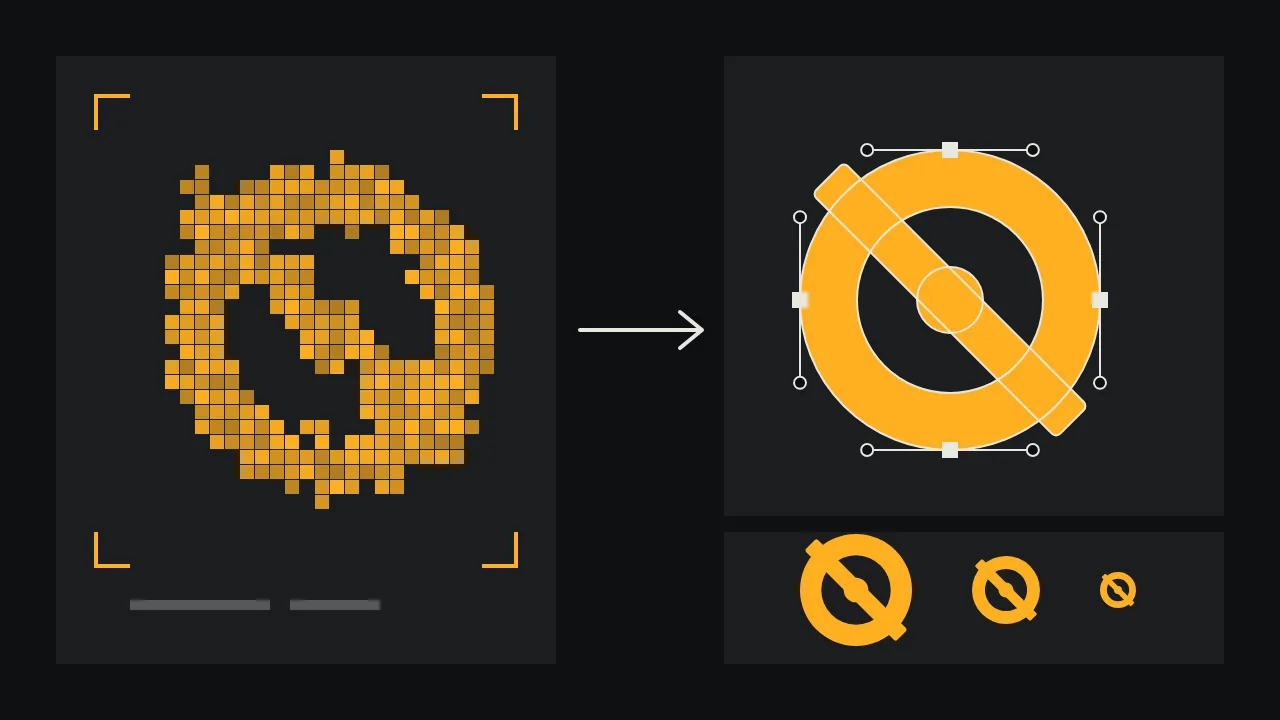
A logo is a small drawing that has to survive being printed on a pen, embroidered on a cap and squeezed into a browser tab. An image model is very good at the first fifteen minutes of that job, when you need forty ideas on a wall, and bad at the last two days, when every curve has to be on purpose. This guide splits the work along that line: what to ask a model for, how to pick, and how to rebuild the winner by hand so that it becomes a real mark.
One sentence to keep in mind throughout: whatever the model gives you is a raster sketch. It is pixels arranged to look like a logo. A production logo is a set of closed paths you drew, can explain and can scale. Everything below is the road from one to the other.
Step 1: ask for many ideas, not one finished logo
The common mistake is to describe the final logo in great detail and hope it arrives. Do the opposite. Describe the idea and the constraints, keep the style plain, and run the prompt many times. You are filling a contact sheet, not ordering a product.
Logo concept sketch for a bicycle repair workshop: a single bold symbol combining a spoked wheel and a wrench, flat solid black shapes on a white background, no text, no gradients, no shadows, no outlines, centred, generous empty spaceIdeogram V4.5 has a square aspect ratio and a quality setting from low to high; explore at low or medium and save the higher setting for the two or three ideas you want to trace. If you prefer a cut-out over a white ground, Ideogram V3 Generate Transparent is described for logos, stickers and design assets and returns the image on a transparent background.
Step 2: choose with three blunt tests
Print the sheet or zoom out until each idea is the size of a thumbnail. Then cross out every concept that fails one of these:
- The squint. Half close your eyes. If the shape turns into a grey smudge, it has too many parts.
- The silhouette. Imagine it filled solid black. If the idea disappears without its inner details, the idea lived in the details, and those will not survive small sizes.
- The description. Can you describe the mark in one short sentence over the phone? "A wheel whose spokes are wrenches" is a logo. "A wheel with some tools and a gear and lines" is a picture.
Keep two finalists, not one. The second gives you something to compare against when you start redrawing and lose your sense of what is good.
Step 3: trace it, do not auto-trace it
Put the chosen sketch on a locked layer in your vector editor at reduced opacity and draw over it with the pen tool. Automatic tracing is tempting, but it reproduces the model's wobble faithfully: hundreds of anchor points, edges that bend where they should run straight, and curves that almost meet. Hand tracing is where you start making decisions instead of copying accidents.
- Place anchors at the extremes of each curve (top, bottom, left, right), not in the middle of a bend. Fewer points give smoother curves.
- Build from primitives. If the wheel is a circle, draw a circle, do not trace one. Rectangles, circles and straight lines combined with boolean operations stay crisp at every size.
- Make repeated parts truly repeat. The model drew eight spokes at slightly different widths; you draw one and rotate copies around the centre.
- Close every path and merge overlapping shapes, so the mark fills cleanly in one colour.
Step 4: simplify until it hurts a little
Now look at your trace beside the sketch and remove something. The model adds texture, tiny highlights and decorative cuts because pictures in its training looked busy. Logos rarely are. Merge two thin gaps into one wide one, thicken any stroke that is thinner than the gaps around it, and align the axis of the mark to the grid. Simplifying is also where the mark starts to belong to you rather than to the sketch.
Step 5: the letters are always yours
If the concept includes a name, treat the generated lettering as a mood, never as artwork. Even when a model spells the word right, the spacing, the stroke widths and the shapes of repeated letters drift from one to the next. Set the name in a licensed typeface, convert it to outlines, then adjust: open up tight letter pairs, even out the weight, and if you customise a letter, change one and leave the rest alone. Our type vocabulary for AI posters has the words for describing the style you want before you pick the face.
When you want to try a custom letter before drawing it, Ideogram V4.5 Edit accepts a mask in which black pixels mark the area to change, so you can ask for a different tail on one letter and keep the rest of the sketch. Again, this produces a picture of an idea. You still draw the final letter.
Step 6: test small, test in one colour
- Export the mark at favicon size and at the size of a social avatar, and look at both on a real screen.
- Fill it in pure black, then in pure white on black. If it only works in its colour version, it is not finished.
- Print it on an office printer at the width of a thumbnail. Toner fills in narrow gaps the way cheap printing and embroidery will.
- Check that it reads in a circle crop and a square crop.
A mark that passes all four is ready for colour, and colour is the easy part. If it will be printed in a single ink, our rules for one-ink printing cover line weights and trapping.
What about the vector models?
The catalog also has models such as Recraft V4.1 Text to Vector, described as making editable vector-style images from a prompt. They are useful for concepts that already look flat. Treat the output the same way as any sketch: check what file you actually downloaded, open it in your editor, and expect to redraw, because a generated path is still the model's guess, not your construction.
What stays on your desk
Originality and clearance are the designer's job. A model can produce something close to an existing mark without telling you, so run a trademark search in the markets where the logo will be used before anyone prints it, and get legal advice for anything you will register. Keep your sketches, prompts and the traced files: they document how the mark was made. For how the finished mark fits into a full identity with palette, pattern and packaging, see the brand identity board for a fictional roastery. When you are ready to fill a contact sheet of your own, open the studio.
Questions
Can I use an AI-generated logo as it is?
It is not a good idea. The output is a raster image with irregular shapes and lettering, and it has not been checked for similarity to existing marks. Use it as a concept, redraw it as a vector and run a trademark search.
Should I auto-trace an AI logo to get a vector?
Only to see the overall shape. Automatic tracing copies the wobble of the sketch into hundreds of anchor points. Tracing by hand with simple shapes gives smoother curves and a file you can edit later.
How small should I test a logo?
At browser tab icon size and at social avatar size on a real screen, plus a thumbnail-width print. Test it in one colour, black on white and white on black, before adding any colour.